
Excel to presentation: turn a spreadsheet into a clear argument
For Excel-to-PowerPoint work, decide whether you need a linked object, an embedded copy or a new explanation of the data. Microsoft documents different paste options with different editing behavior. Choose the transfer method before promising that the recipient can update the numbers.

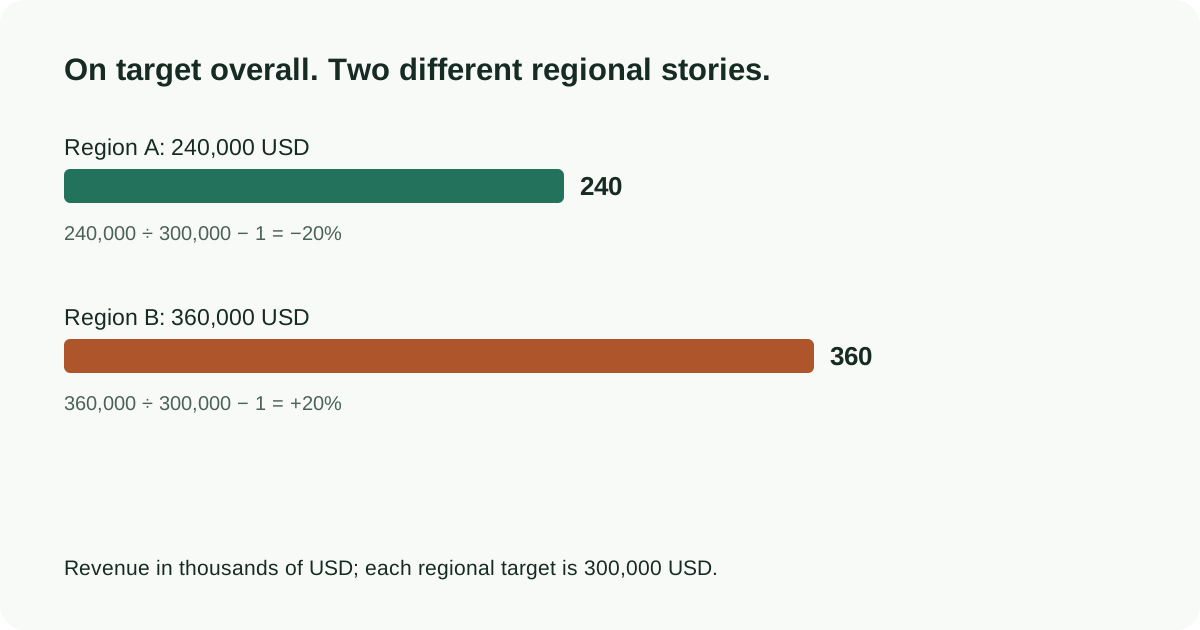
Worked example
A regional workbook in this example has revenue of 240,000 and 360,000 USD, against targets of 300,000 and 300,000. Total revenue is 600,000, exactly on the 600,000 target, but the regions are 20% below and 20% above their individual targets. A slide saying only 'on target' hides the allocation decision. Use one headline about the total, a two-row variance table and a question about whether resources should move between regions. Keep the workbook as the calculation source.
- Select the relevant range and record the period, units and source.
- Show the baseline, latest value and variance; distinguish percent from percentage points.
- Recalculate totals against Excel and label forecasts separately from actual results.
From calculation to a defensible headline
Write the formula beside the source values before choosing a chart. A total, a rate and a change in a rate need different denominators. Round only the displayed answer so repeated rounding does not distort the comparison.
- Record period, unit and population for each input; distinguish actual results from a plan or forecast.
- Recalculate the headline independently from the chart, then check that both tell the same story.
- Turn the result into a specific decision. Keep proposed explanations as questions until separate evidence supports them.
A link suits a maintained internal workflow when the source remains accessible. An embedded copy travels with the presentation but becomes a separate version to manage. A picture preserves a snapshot and should not be described as editable data. For an AI-generated narrative, provide a checked range with headers, units and periods rather than assuming a whole workbook will be interpreted correctly. Before delivery, reopen the file on another machine and test the chosen update path. Remove any hidden or unnecessary workbook information from the copy you distribute.
Put the workflow into practice
Start with your approved source in Pageworks. Review the outline, generate the deck and refine the result. Pro supports up to 50 slides and editable PowerPoint export; choose the plan that matches your handoff.
Sources and further reading
Build your next presentation with Pageworks
Editable PowerPoint with Pro — or start on Free today
Related articles

Oct 8, 2026 · 2 min read
Consulting Presentation Structure: An Answer-First Example
Oct 1, 2026 · 2 min read
Markdown to PowerPoint: Choose a Conversion Workflow
Sep 27, 2026 · 2 min read
The 10/20/30 rule: a useful constraint for an AI-assisted pitch